

High-Quality Rendering#
Overview#
High-quality rendering uses physically correct lighting as the energy source, physically based materials to define interaction rules, and global illumination to simulate the full energy propagation path in the scene. Together, these components create photorealistic results.
Global Illumination#
Global illumination (GI) is a rendering technique that simulates how light propagates through a 3D scene. It calculates not only the direct illumination from light sources to object surfaces, but also indirect illumination where light reaches the camera after one or more reflections or refractions from other objects, such as color bleeding, soft shadows, and caustics. Its physical basis is described by the rendering equation, and its main challenge is the high computational cost.
SSGI#
Motrix-Sim integrates SSGI (Screen Space Global Illumination), a screen-space lighting technique. Under limited conditions, it improves rendering quality and makes images look more realistic.
SSGI rendering effect:
SSGI rendering effect
Main Features#
Screen-space indirect lighting: Simulates multiple light bounces in the rendered image
Screen-space reflection: Simulates surface reflections in the rendered image
GI Effect Comparison#
|
|
|---|---|
Direct Light Only |
Direct Light + Env IBL |
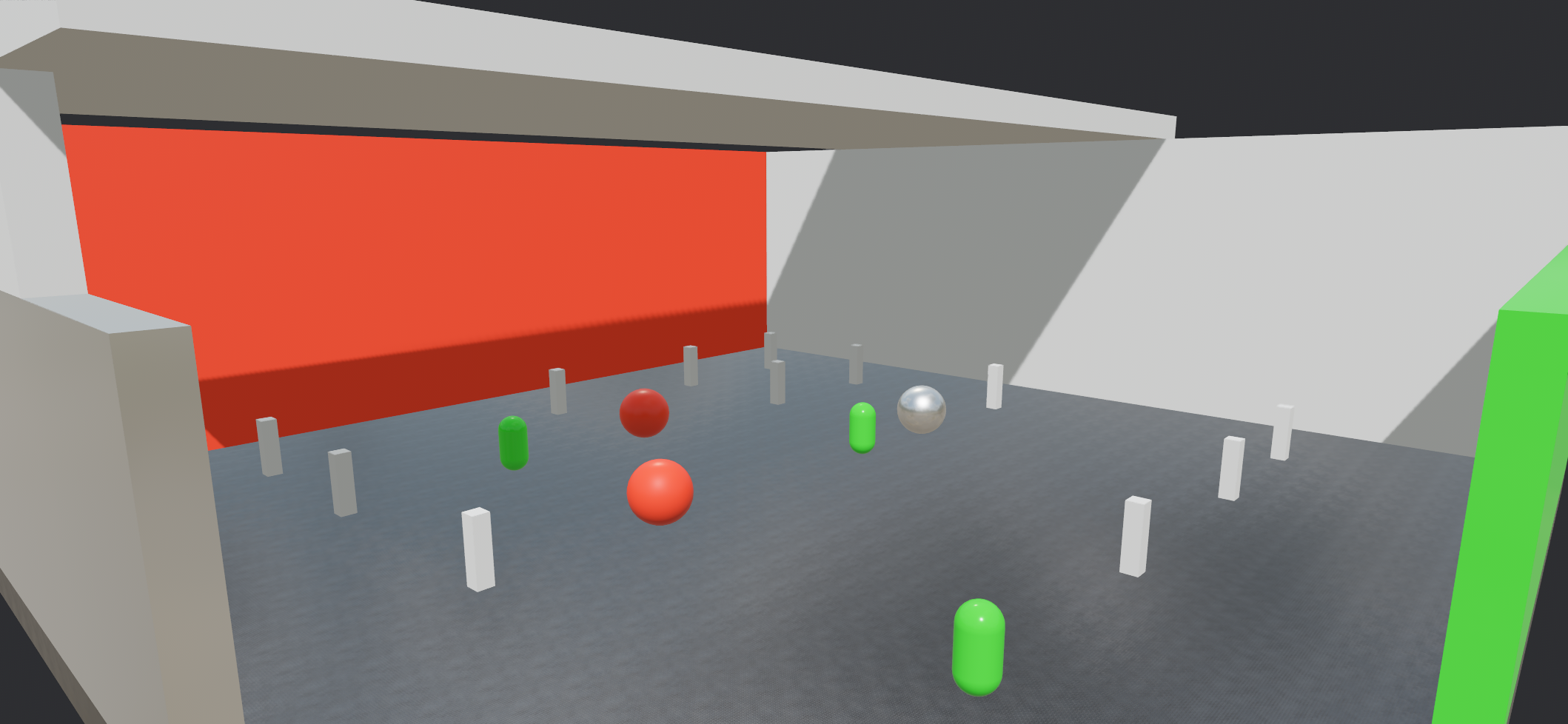
|
|
|---|---|
Direct Light + Env IBL + SSAO |
Direct Light + Env IBL + SSGI |
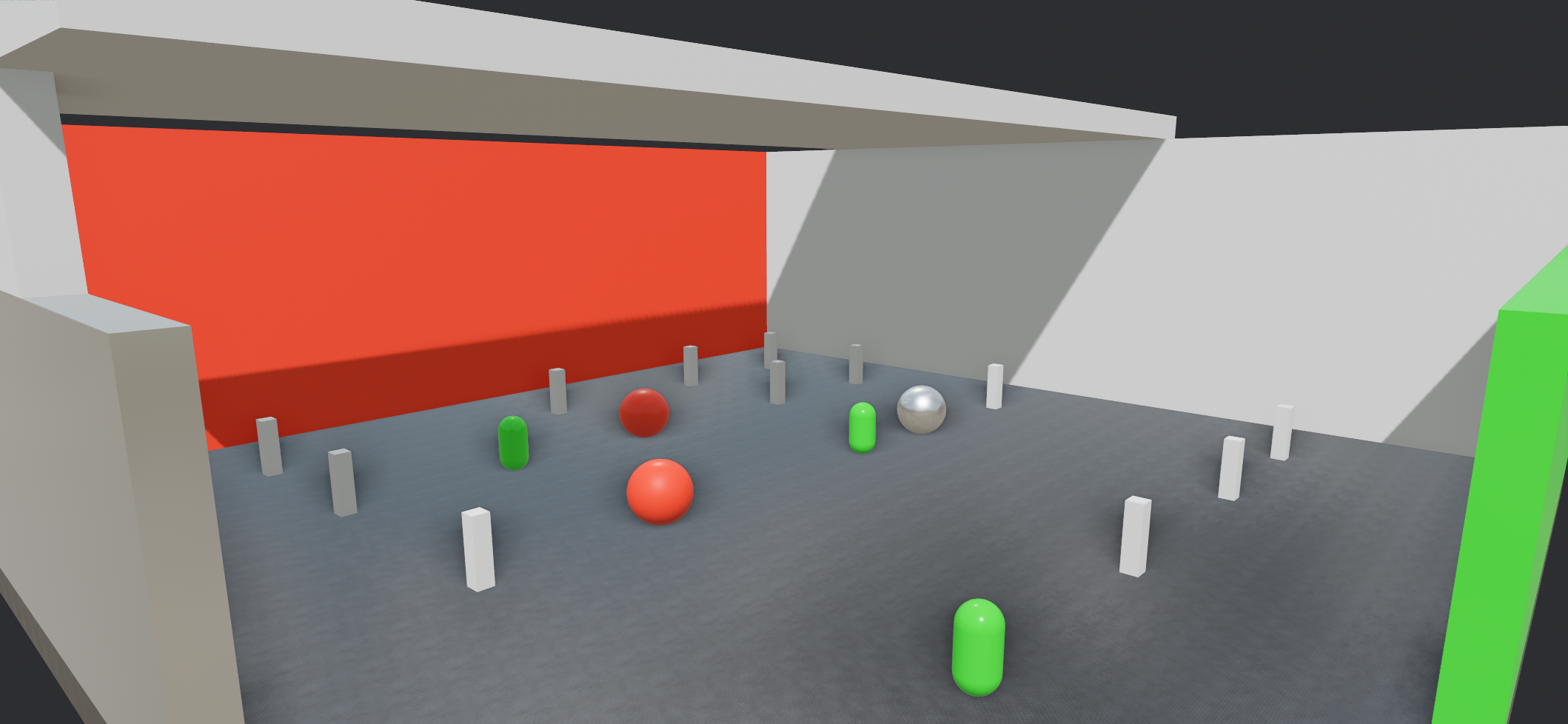
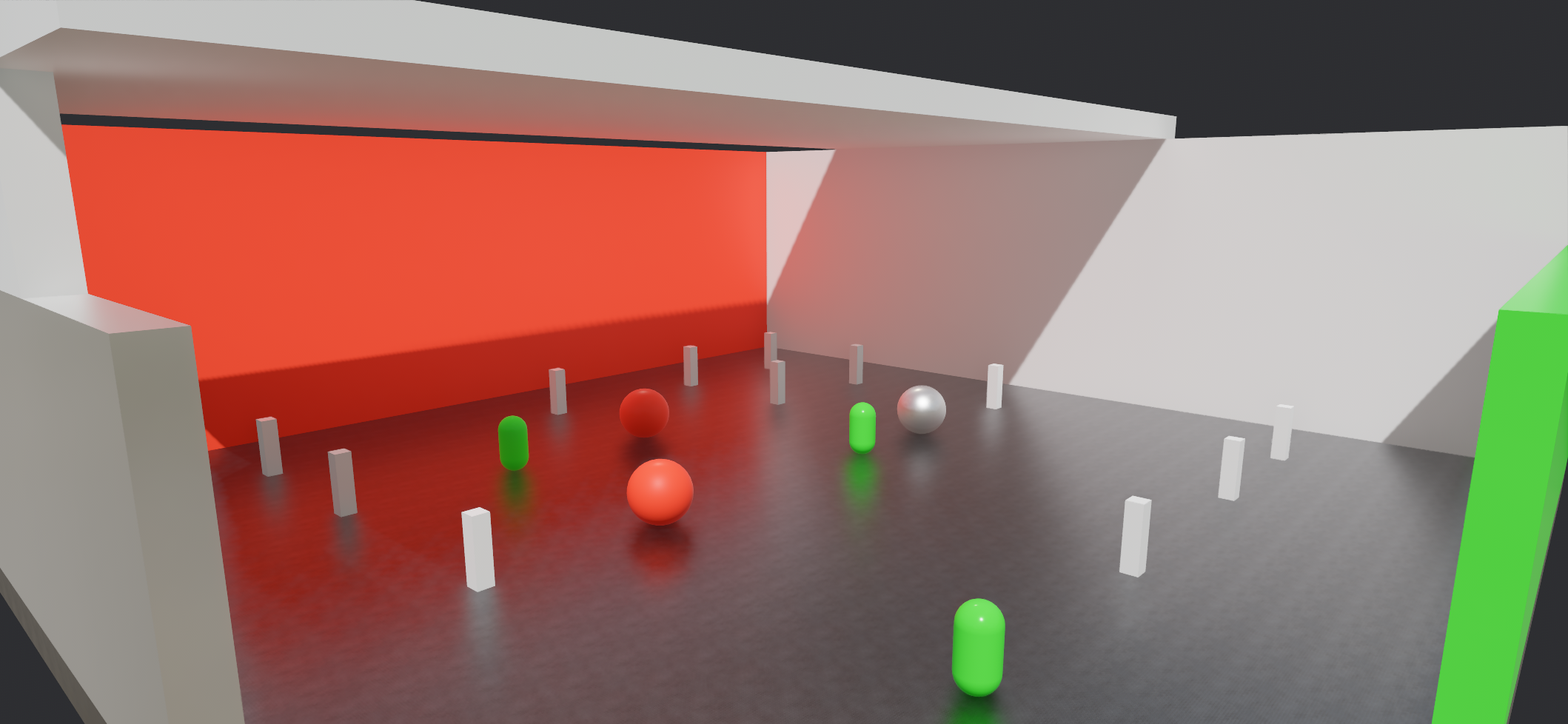
Note
GI is a core technique for high-realism rendering. SSGI is a cost-effective choice for real-time dynamic GI: it trades screen-space limitations for high-performance indirect lighting that requires no precomputation, is fully dynamic, and is decoupled from scene complexity. It also does not require a specific GPU vendor.
It is best suited for indoor or close-range real-time previews where dynamic lighting is important and physically approximate results are acceptable. It is not suitable for scenes that require off-screen information, physical accuracy, or deployment on low-power or high-frame-rate platforms.
How to Enable#
XML Configuration#
In an MJCF file, use the <ssgi> tag to configure rendering parameters:
<mujoco>
  <visual>
    <ssgi
      active="true"
      resolutionscale="2"
      raycount="2"
      stepcount="8"
      thickness="0.25"
      intensity="1.0"
      gidenoiseoffset="3"
      rraycount="64"
      rdenoiseoffset="3"
    />
  </visual>
</mujoco>
Tag Description#
active: Enables or disables SSGI. The default is false
resolutionscale: Controls the quality of fast global illumination. A higher resolution scale uses less memory (buffer size = 1 / resolution scale). Valid input values are 1, 2, or 4. Other values default to 2
raycount: Number of global illumination rays traced per pixel. Range: 1 - 16. Increasing the ray count increases performance cost
stepcount: Number of screen samples for each global illumination ray. Range: 1 - 64. Increasing the sample count increases performance cost
thickness: Surface geometry thickness used when calculating fast GI, reflections, and AO. It reduces light leaking and missing contact occlusion
intensity: GI intensity
gidenoiseoffset: Indirect lighting denoise offset range. A value of 0 disables denoising
rraycount: Number of screen samples for each reflection ray. Range: 32 - 512. Increasing the sample count increases performance cost
rdenoiseoffset: Reflection denoise offset range. A value of 0 disables denoising
Example code:
render_settings = RenderSettings.quality()
# Create the render instance of the model
render.launch(model, render_settings=render_settings)
Attention
The final effect appears only when both the global configuration is enabled and the SSGI rendering option is enabled in the scene description file (MJCF/MSD)
When SSGI and SSAO are enabled at the same time, SSAO is ignored. SSGI provides an SSAO effect for free and with higher accuracy
The Python API currently supports only enabling or disabling SSGI rendering. It does not yet support configuring rendering parameters
Complete example scene Complete example code
Hardware and software configuration used for the example video and images:
Software/Hardware |
Model |
|---|---|
OS |
Ubuntu 24.04.4 LTS |
Processor |
Intel CoreTM i5-14600KF |
Memory |
32.0 GiB |
Graphics |
NVIDIA GeForce RTX 5060 Ti |
On this configuration, SSGI costs about 1-2 ms in scenes with different complexity. A higher resolution scale (resolutionscale) can significantly improve rendering performance.
Attention
SSGI requires hardware support for compute shaders. Integrated GPUs are not recommended for SSGI.
Lighting and Materials#
After global illumination, realistic rendering also requires appropriate lighting and material configuration.
Lighting and Shadows#
Everything has shadows. Without shadows, a scene looks flat. Shadow on/off comparison:
Shadows On |
Shadows Off |
|---|---|
|
|
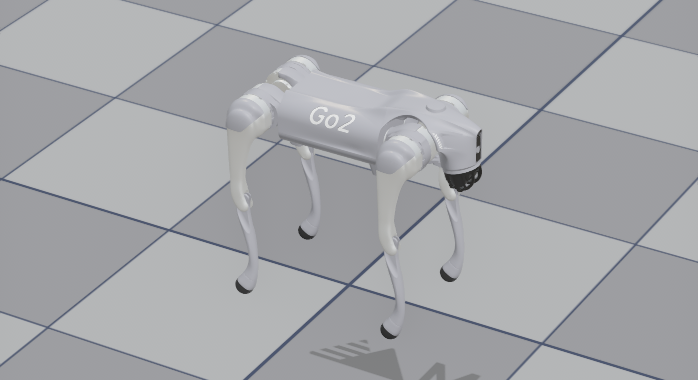
If there are no shadows, check whether render_settings.enable_shadow is set to true and whether castshadow is set to true in the MJCF light tag.
Attention
Too many lights and shadows can cause severe performance degradation. In multi-world simulation training, avoid using many independent spotlights and point lights. Use a global directional light instead.
Material Appearance#
To correctly reproduce the appearance of real materials, configure the material parameters reflectance, roughness, and metallic correctly:
<asset>
  <material name="mat_sample_m_0_r_0" rgba="0.8 0.8 0.8 1.0"
    reflectance="0.5"
    roughness="0.0"
    metallic="0.0"
  />
</asset>
Core Concepts#
reflectance: Controls material reflectance from 0 to 1 and adjusts reflection strength (non-metallic materials only). The general default is 0.5
roughness: Controls surface roughness from 0 to 1
metallic: Uses 0 or 1 to determine whether the material is non-metallic or metallic. Intermediate values are generally not used unless an NPR appearance is desired
Core Parameter Appearance Examples#
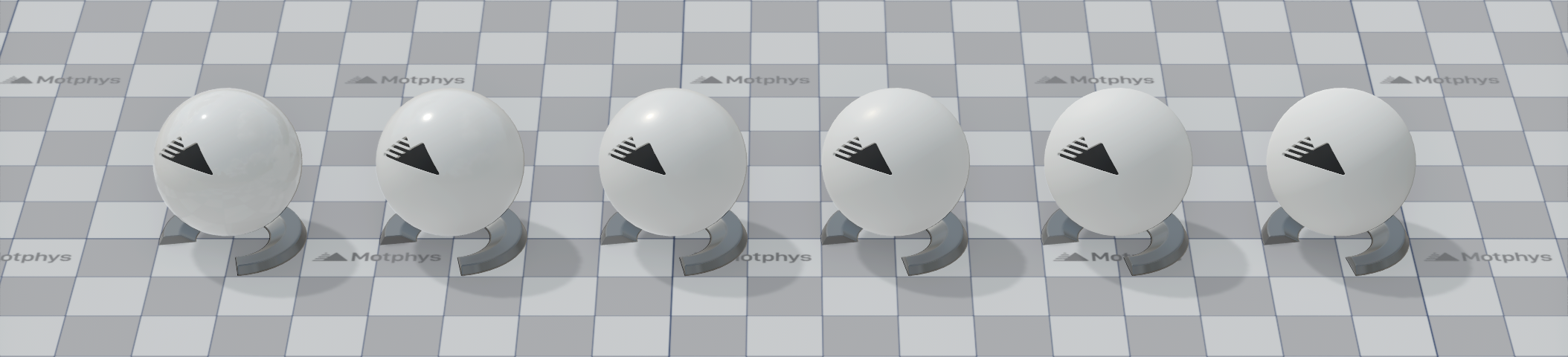
reflectance = 0.5, metallic = 0.0, roughness 0.0 - 1.0 from left to right#
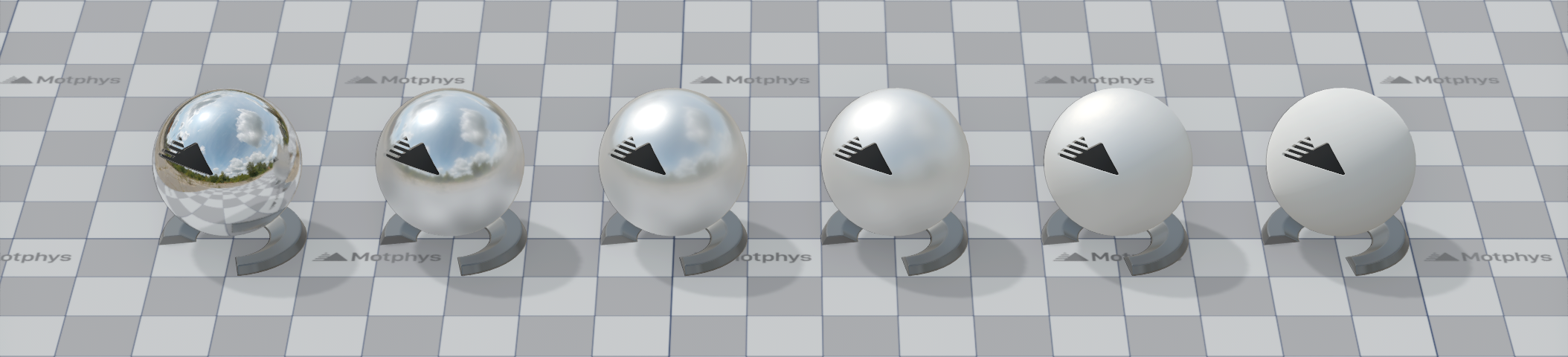
reflectance = 0.5, metallic = 1.0, roughness 0.0 - 1.0 from left to right#
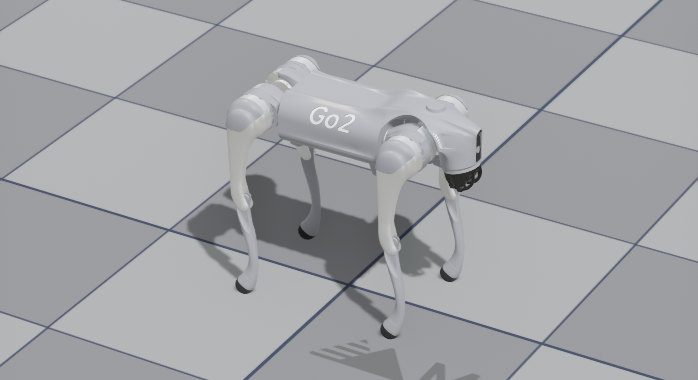
Using the material configuration in go2.xml as an example, correct material parameters produce a realistic surface appearance:
|
|
|---|---|
Correct material parameters |
Incorrect material parameters |
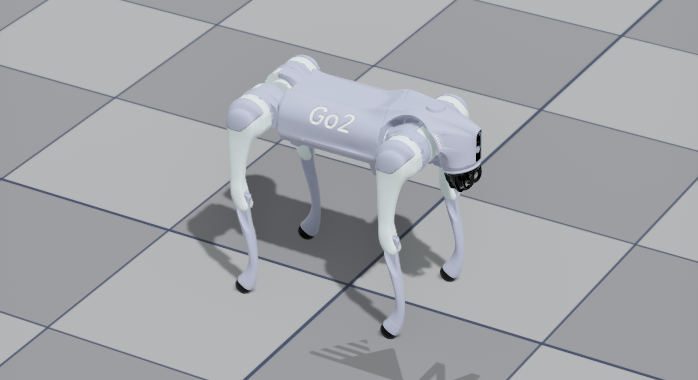
Troubleshooting#
GI Has No Effect#
Possible reasons why GI has no effect:
The MJCF file sets
<ssgi active="true"/>and the Python script setsrender_settings.enable_ssgi = True, butintensityis set to 0The MJCF file sets
<ssgi active="true"/>, but the Python script does not setrender_settings.enable_ssgi = TrueThe MJCF file does not set
<ssgi active="true"/>, but the Python script setsrender_settings.enable_ssgi = TrueThe MJCF file reference is incorrect: the MJCF file uses
attach, while the SSGI tag is set in the attached model file.attachignores globalvisualtag settings
Scene Is Too Dark or Overexposed#
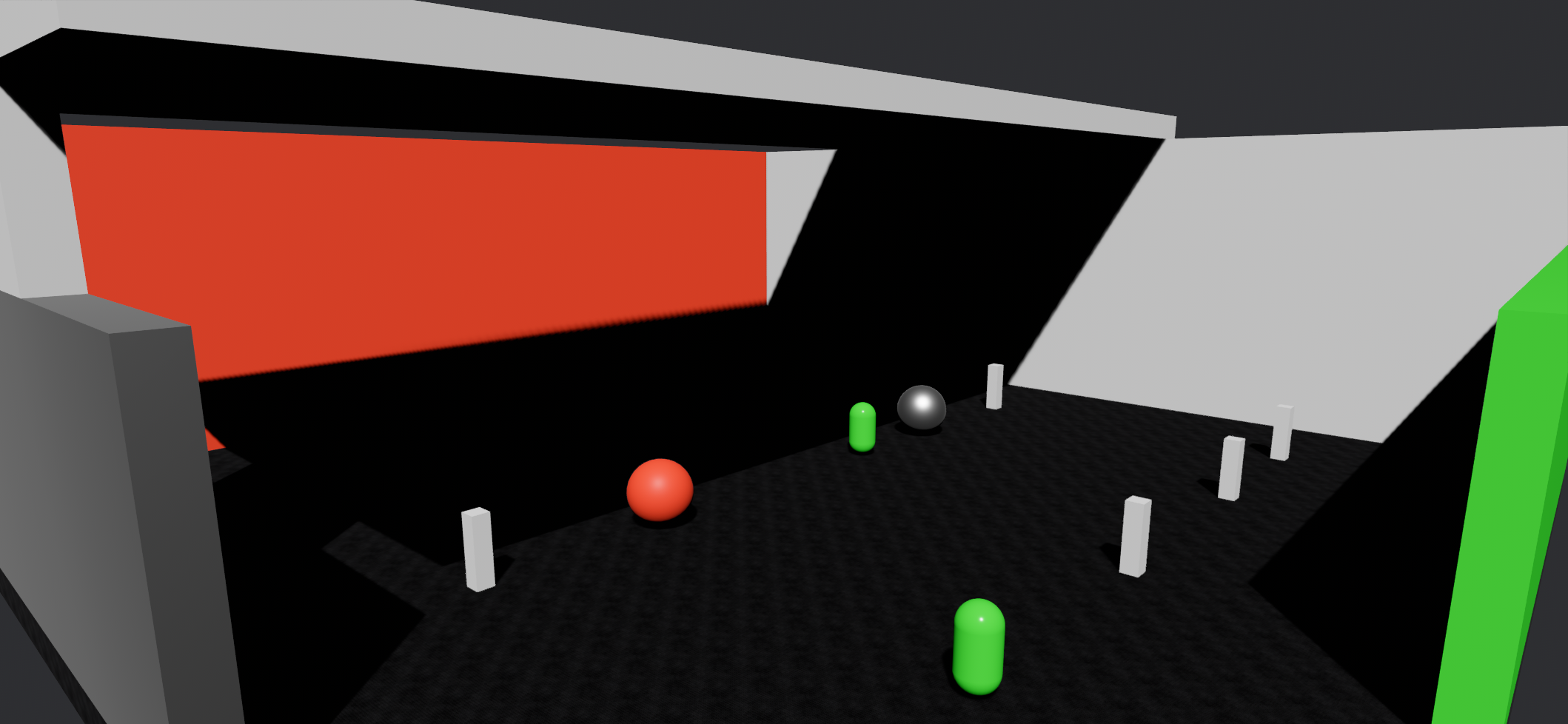
If the MJCF tags are configured like the following and SSGI is not enabled, the rendering result will be dark:
<visual>
    <headlight diffuse="0.0 0.0 0.0" ambient="0.0 0.0 0.0" specular="0 0 0"/>
    <map envmapintensity="0.0"/>
</visual>
Example result:
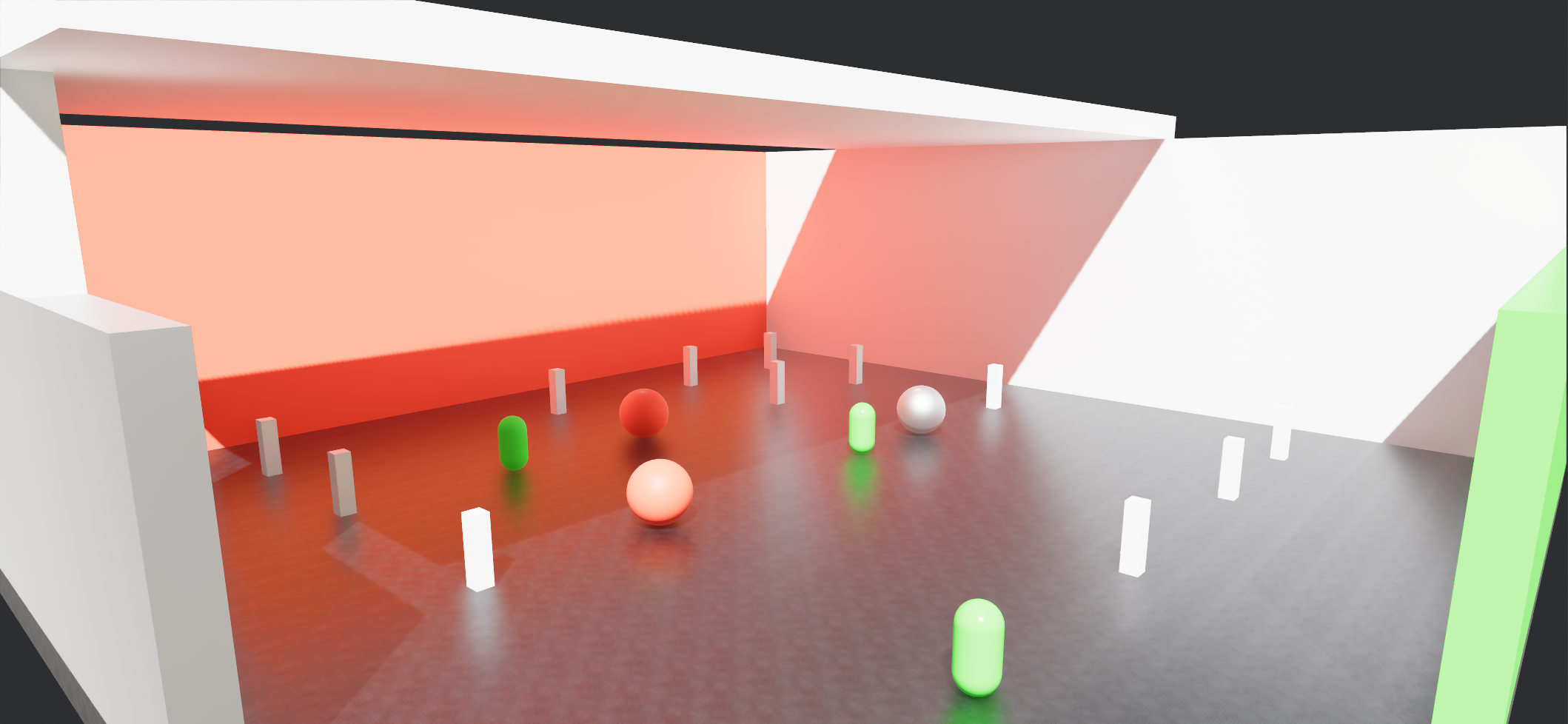
If the rendering looks like the image below, the light intensity is too high, causing overexposure and color distortion. Check and reduce the corresponding light intensity and envmapintensity.
Significant Performance Drop#
If performance drops significantly, first disable SSGI and test how much disabling SSGI affects the frame rate:
SSGI off/on has little impact on frame rate:
Check the multibody assets, including textures, models, collision, and multibody configuration
Check policy synchronization and simulation status
SSGI off/on has a large impact on frame rate:
Reduce the quality of fast global illumination. Use a higher resolution scale to reduce GI computation
If the hardware configuration is too low, disable SSGI and enable it only for offline video or static image output
Check the hardware configuration and update the hardware
Attention
Currently, only Windows, Linux, and Mac platforms support SSGI. Web and mobile platforms do not support it yet